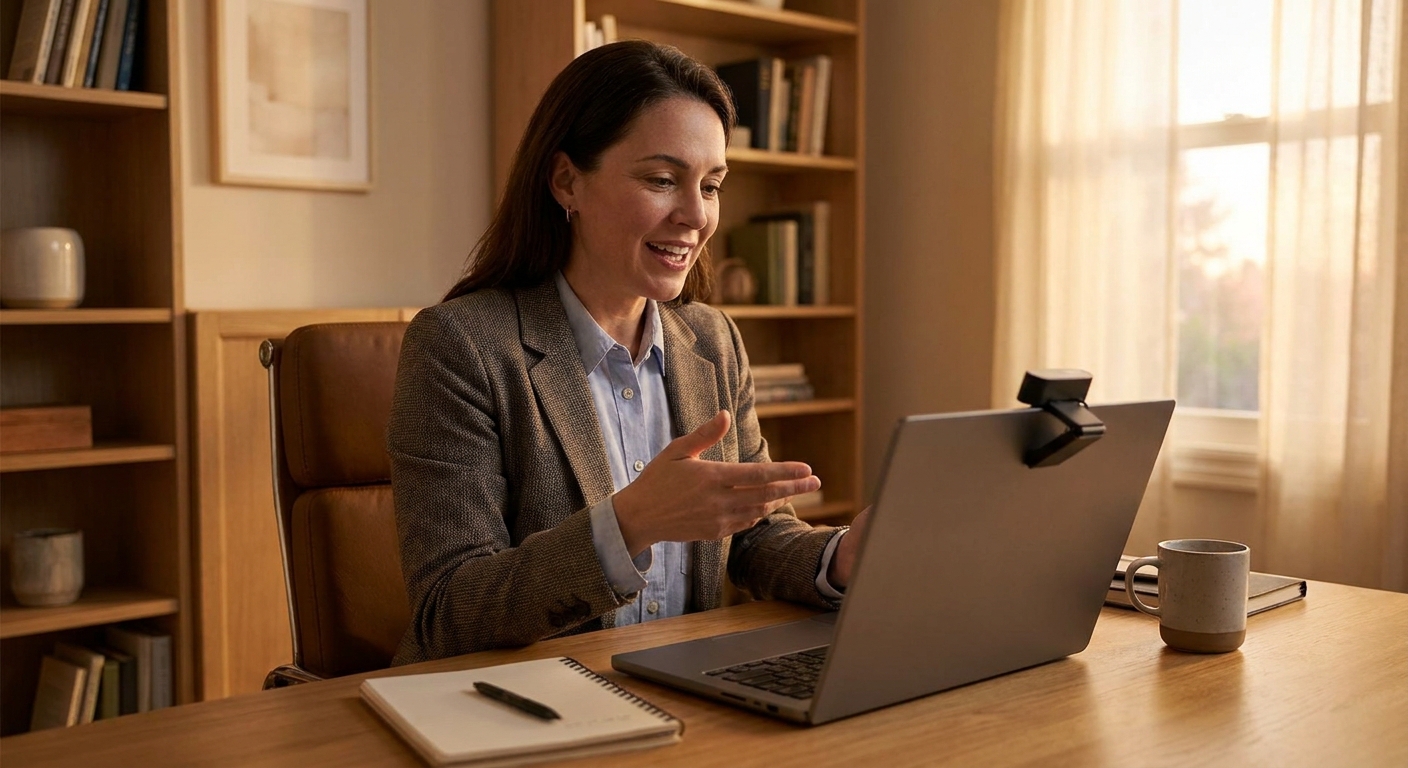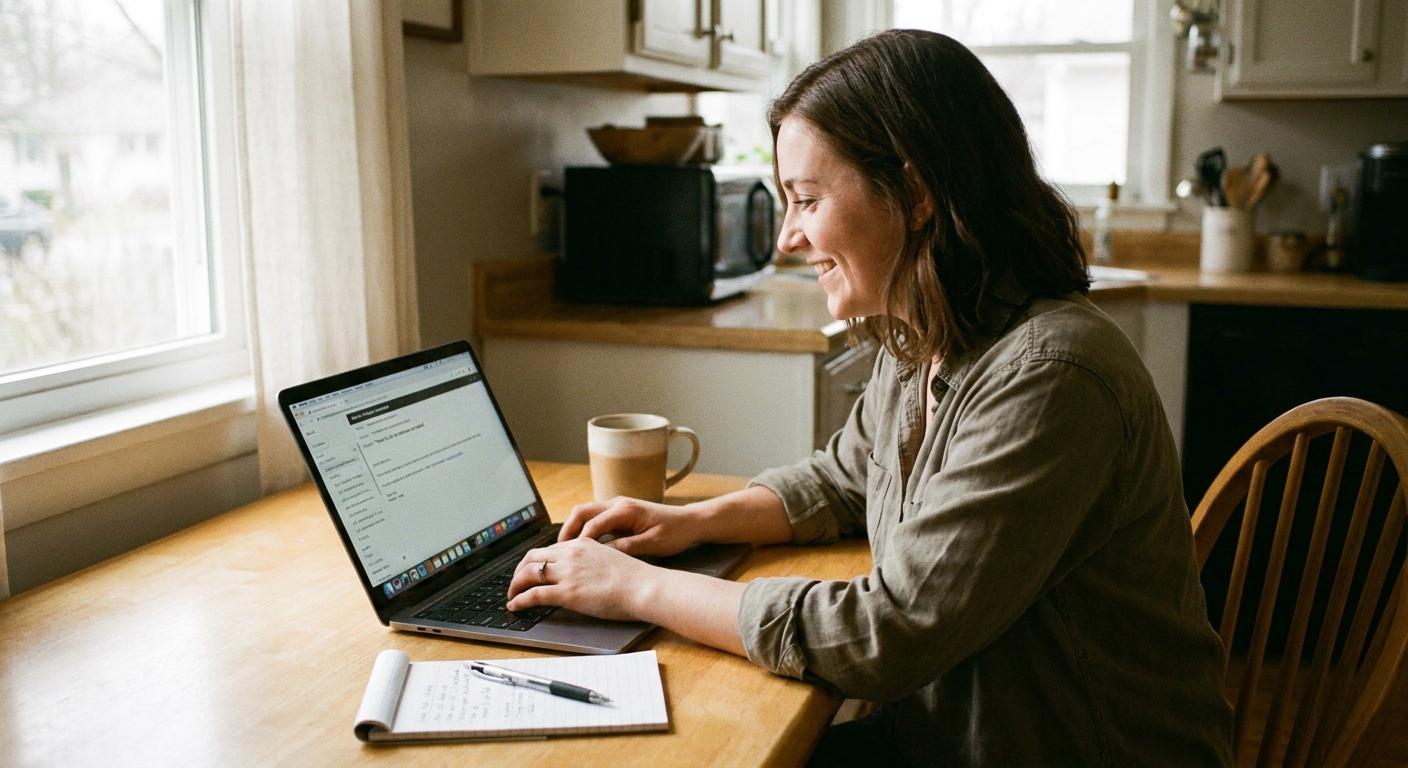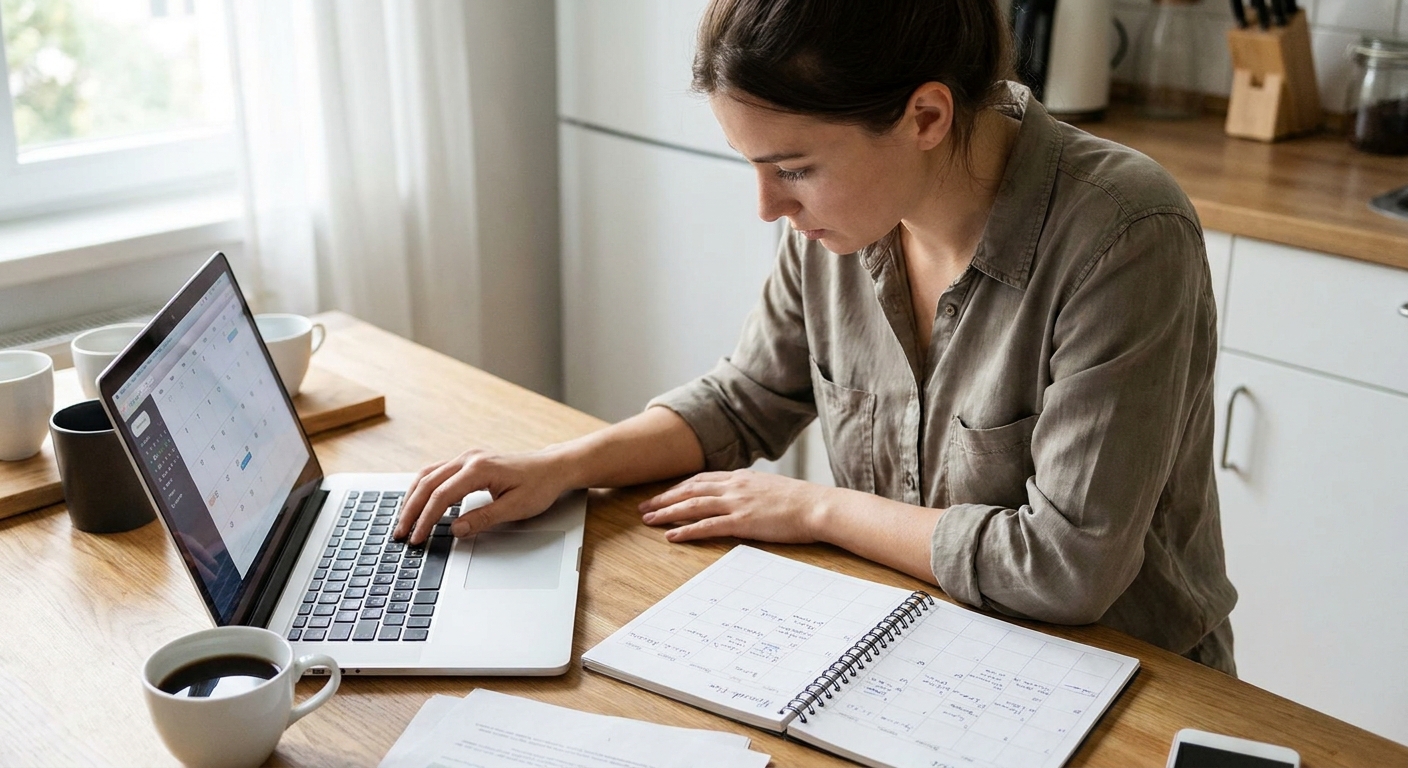
The first time I coached a client through a live video interview, they did everything right on paper: strong resume, great experience, solid answers in practice. Then the interview started and their laptop camera pointed up their nose, a bright window turned them into a silhouette, and their microphone sounded like they were calling from inside a coat pocket. The hiring manager tried to be polite, but you could feel the momentum slipping.
The good news is this is fixable. Live video interviews are not about having fancy gear. They are about being clear, stable, and professional enough that the interviewer can focus on your story, not your setup.
Know what a live video interview is
A live video interview is a real-time conversation with a recruiter, hiring manager, or panel using a platform like Zoom, Microsoft Teams, Google Meet, or Webex. Unlike recorded one-way interviews, you will be interacting in the moment, which means your tech, environment, and timing matter more.
Your goal is simple: look and sound like the best version of you, with as few distractions as possible.
Your 24-hour checklist
If you want a single plan that covers most problems, do these the day before (or earlier):
- Confirm the platform and install updates so you are not stuck downloading software five minutes before start time.
- Do a full tech check in the exact app you will use: camera, microphone, speakers, screen share, and any permissions pop-ups.
- Choose your location and do a quick background sweep.
- Run a lighting check at the same time of day as your interview.
- Do a full rehearsal with a friend: join link, greet, talk for 2 minutes, share one story, end call.
- Prep a backup plan for internet or power issues (hotspot, alternate device, phone dial-in if offered).
Camera: eye level and stable
Get the angle right
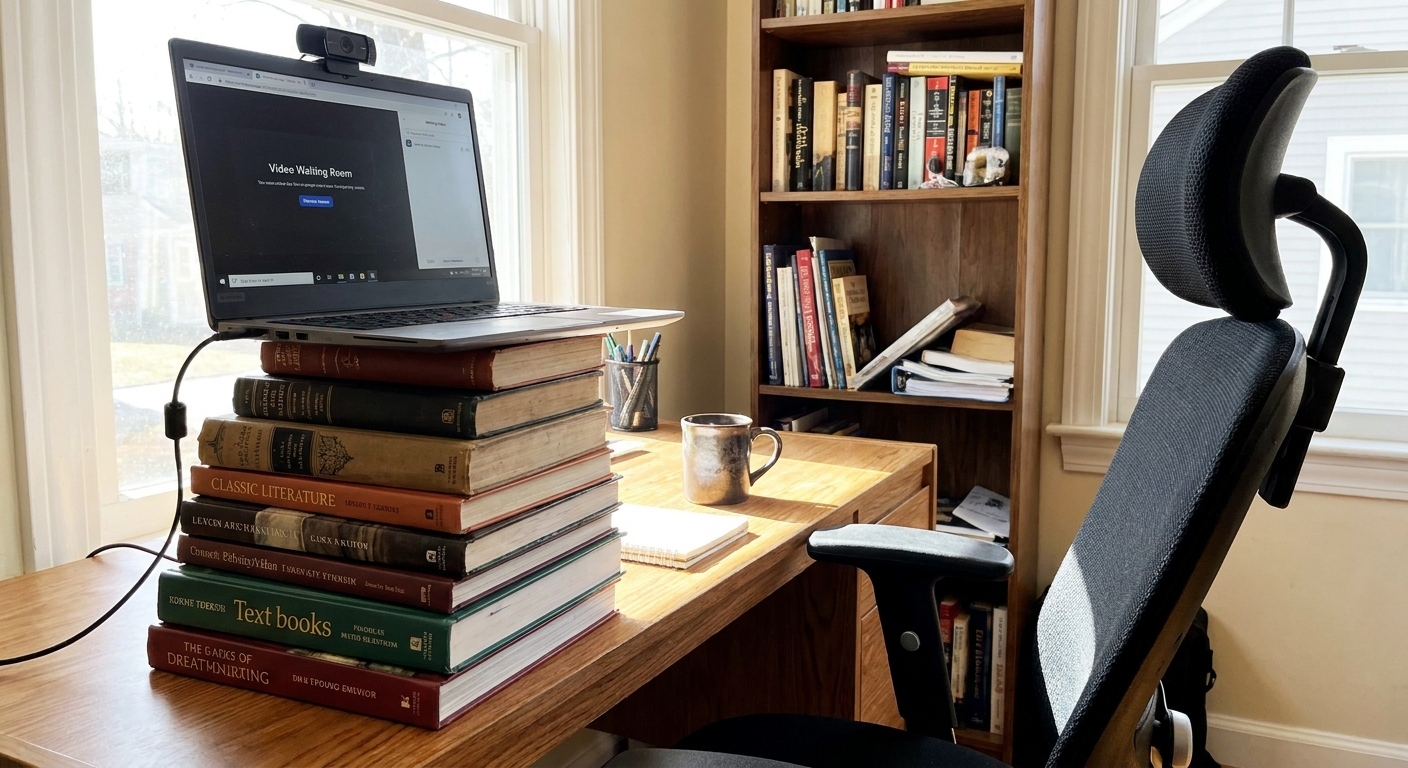
The most common mistake I see is placing the laptop too low. You want your camera roughly at eye level so your face is centered and natural.
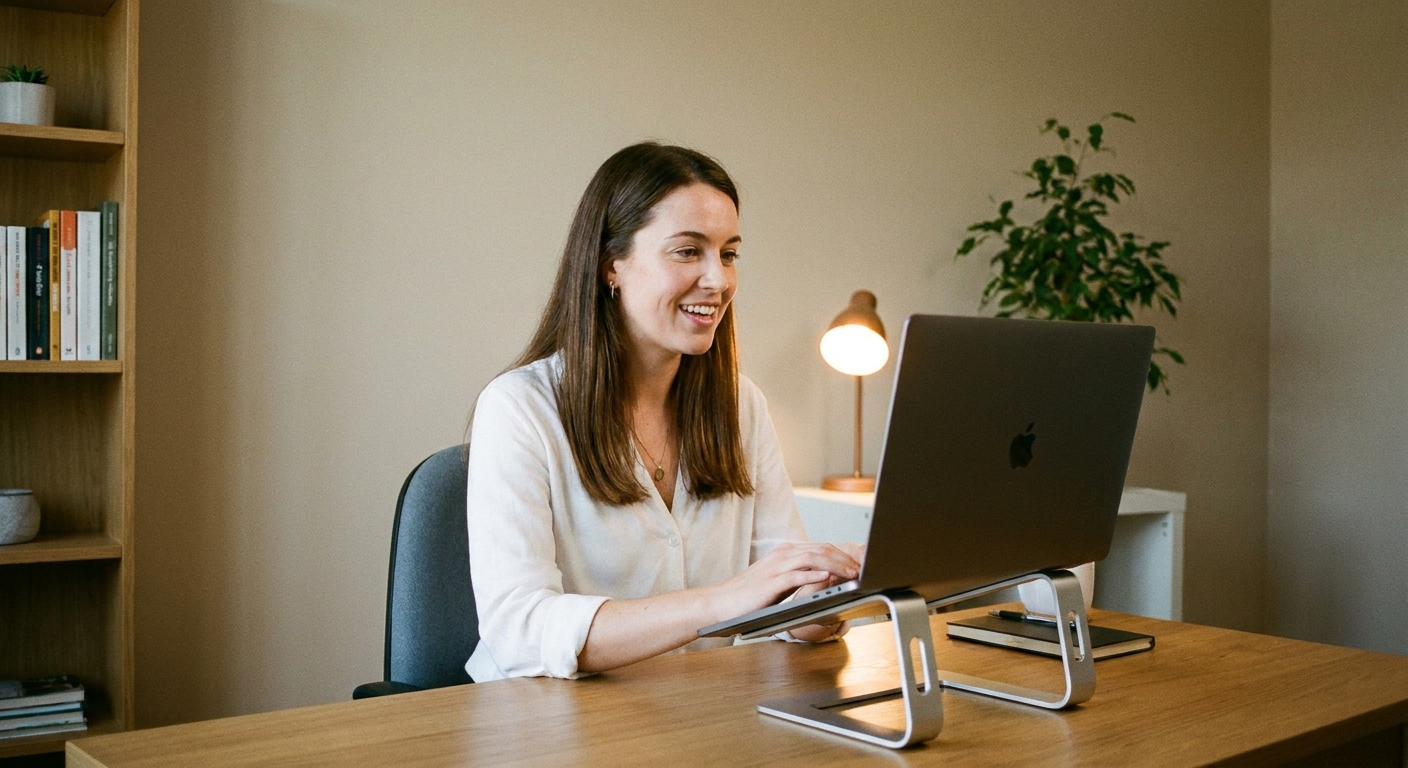
- Raise your device with a stable stack of books or a laptop stand.
- Distance matters: frame from mid-chest to just above the top of your head.
- Look at the camera when speaking, especially for your first 30 seconds. It reads as confident eye contact.
Choose the best camera available
Your laptop camera is usually fine if the lighting is good. If you have a newer phone with a sharper camera, you can use it only if you can keep it stable and hands-free. Stability beats ultra-HD every time.
Lighting: avoid silhouette
Lighting is the difference between professional and easy to read, and mysterious shadow figure. You do not need a ring light, but you do need light on your face.
A simple lighting setup
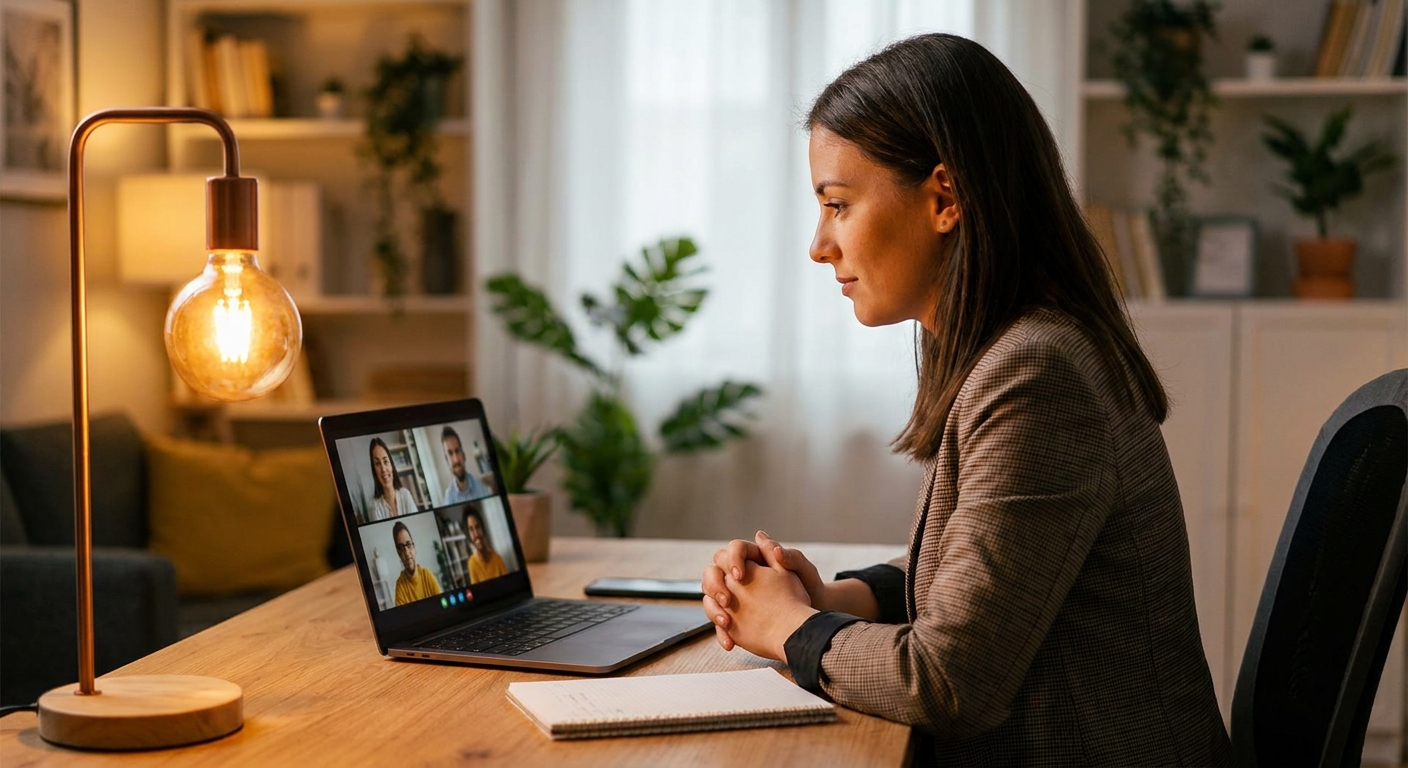
- Face a light source (window or lamp) so light hits your face from the front.
- Avoid bright windows behind you. Backlighting makes your camera darken your face automatically.
- Soften harsh overhead lighting by adding a lamp at about head height, slightly off to one side.
Check it at interview time
If your interview is at 4 p.m., check your setup at 4 p.m. Sunlight changes dramatically across the day. I have seen a perfect 10 a.m. setup turn into a glare-filled mess by late afternoon.
Sound: often more important than video
If the interviewer cannot hear you clearly, it creates friction that has nothing to do with your qualifications. Slightly soft video is usually forgivable. Choppy, muffled audio usually is not. Prioritize clean audio.
How to get clear audio fast
- Use headphones with a mic if you have them. Even basic wired earbuds often sound better than a laptop mic.
- Get close enough. If you are more than an arm’s length from your device, your voice may sound distant.
- Reduce echo with soft items: rug, curtains, upholstered chair. Hard, empty rooms bounce sound.
- Mute notifications on your computer and phone. Close chat apps that pop up.
Pick one audio device and stick to it
Bluetooth headsets can lag or disconnect. If you use Bluetooth, do a 10-minute test call in the meeting app. If it glitches, go wired for the interview.
Background: clean and boring
Your background should not compete with you. Think: tidy, neutral, and consistent with the role.
What works behind you
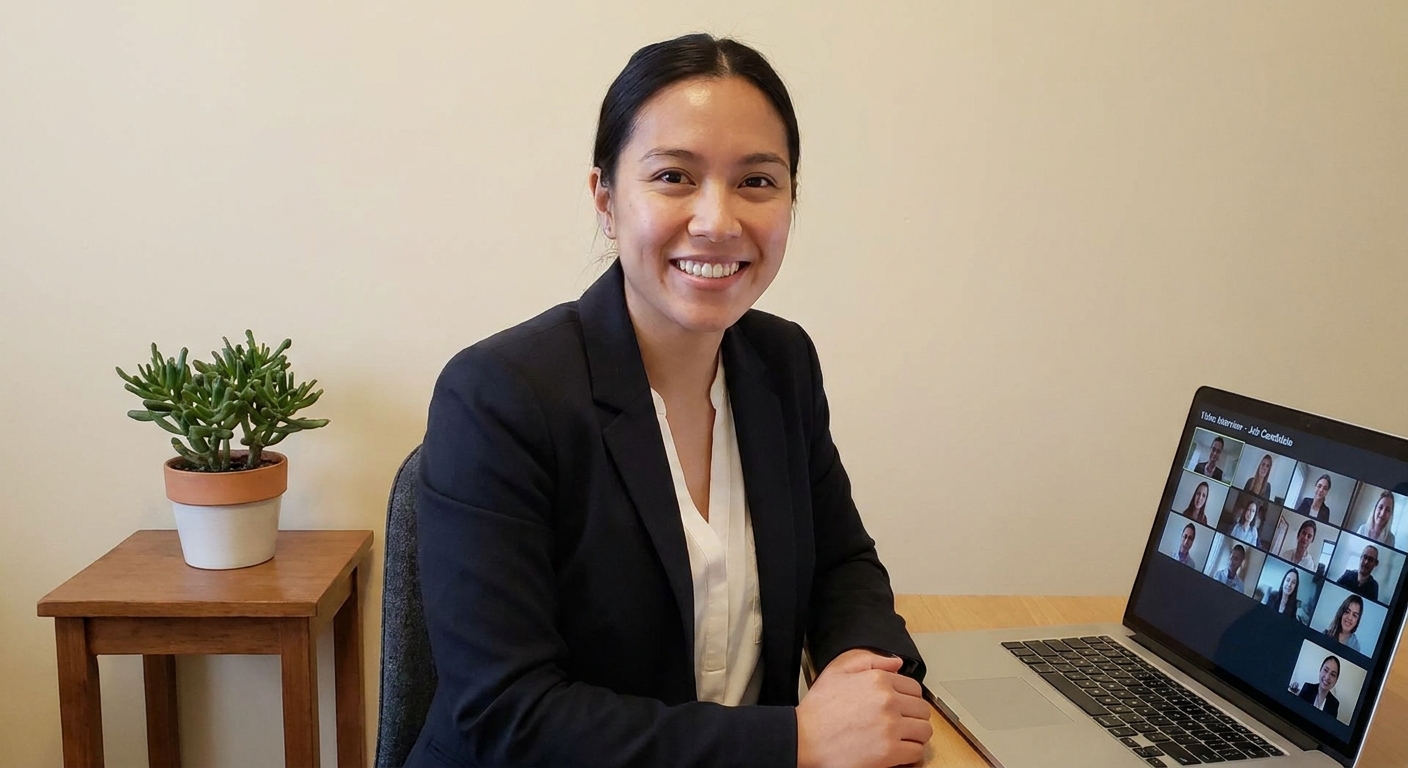
- A plain wall, a simple bookshelf, or a neat corner of a room.
- One or two minimal items are fine (a small plant, a lamp, a framed photo) as long as it is not distracting.
- Some depth: if possible, sit a few feet away from the wall so you do not look flattened into the background.
What to remove or avoid
- Mess: laundry piles, dirty dishes, busy countertops.
- Personal or controversial items: political signs, explicit posters, alcohol bottles, anything that invites assumptions.
- Foot traffic: hallways where roommates, kids, or coworkers will walk through.
Virtual backgrounds: be careful
Virtual backgrounds can help if your space is unpredictable, but they can also create visual glitches around your hair and hands. If you use one, choose something simple and office-like, and confirm it runs smoothly on the device you will interview on.
Internet and devices: have a backup
Even great candidates get derailed by unstable connections. You cannot control your internet provider, but you can control your contingency plan.
Stability tips that help fast
- Use a wired connection (Ethernet) if you can.
- If on Wi-Fi, get close to the router and ask others in your home to pause streaming during your interview.
- Restart your router a few hours before, not two minutes before.
- Close bandwidth-heavy apps: cloud backups, file syncing, gaming launchers, extra browser tabs.
Have a backup device ready
Keep your phone charged and within reach. If your laptop freezes, you want to rejoin fast from a second device. If the invite includes a dial-in number, save it in your phone contacts before the interview.
Screen sharing: be ready
If there is any chance you will be asked to walk through a deck, portfolio, or project, treat screen sharing like part of the interview, not an afterthought.
- Close unrelated tabs and apps (messages, personal email, anything with pop-ups).
- Pre-open what you plan to share and place it on your desktop so you are not hunting for files mid-call.
- Practice sharing the right thing: the specific window or the full screen, whichever you prefer.
- Turn on Do Not Disturb to prevent banner notifications from showing up during a share.
Platform settings: quick privacy check
Most meeting platforms remember settings from your last call. Make sure your defaults are not working against you.
- Confirm camera and mic permissions are enabled for your meeting app and browser.
- Check your display name so it shows your first and last name. If pronouns are displayed and you want them included, verify they are correct.
- Skip filters. If you have “touch up appearance” or any effects enabled, keep it subtle or turn it off. You want to look like you, on a great day.
What to wear
Dress for the role and company, but remember video has its own rules: cameras exaggerate contrast and pick up small distractions.
- Choose solid colors (navy, charcoal, jewel tones). Busy patterns can create a moiré effect that looks like shimmering on camera.
- Avoid bright white if it blows out under your lighting.
- Make sure it fits at the desk. Sit down in your outfit and confirm it looks neat when you move.
- Dress fully, not just from the waist up. It prevents panic if you need to stand unexpectedly.
Set your space like work
Small environment choices reduce stress and keep you from fumbling mid-interview. If you are feeling nervous, this is one of the easiest ways to get back a sense of control.
Do a desk reset
- Put water nearby (in a quiet cup or bottle).
- Have a pen and paper for notes.
- Keep one page of quick prompts off-camera: role title, interviewer names, 3 achievements you want to mention, 2 questions to ask.
- Silence your phone, but do not hide it. If your call drops, you may need it instantly.
Control interruptions
- Tell people in your home your interview time and ask for quiet.
- Handle pets: another room if possible, or arrange supervision.
- Use a simple sign on the door if you have kids or roommates who might forget.
Timing: join a few minutes early
Plan to be fully ready 10 to 15 minutes before start time. Join 3 to 5 minutes early unless the employer specifically requests otherwise. Depending on the platform, you may be placed in a waiting room, or you may enter the meeting immediately.
- Open the link early so you can handle any permissions (camera or mic access).
- Do one last scan: posture, lighting, background.
If the call drops
This happens more often than you think, and it is not an automatic dealbreaker. What matters is how calmly and quickly you rejoin. The interviewer knows the difference between a tech glitch and a lack of preparation.
Set up to recover
- Save the meeting link somewhere easy to reopen (calendar invite and a browser bookmark).
- Keep the recruiter’s email open in a tab so you can message fast if needed.
- Have your phone ready with the app installed, logged in, and updated.
When it drops, do this
- Rejoin immediately using the same link.
- If it fails twice, switch devices (phone hotspot or phone app).
- Send a quick message if you cannot reconnect within 2 to 3 minutes: apologize briefly, say you are reconnecting, and ask if they prefer you to call in.
- Once you are back, keep it simple: “Thank you for your patience. I’m back and ready.” Then continue.
If you feel flustered, take one slow breath before you speak. A steady tone communicates professionalism even if the tech did not cooperate.
Quick self-check
If you only have five minutes to prepare, focus here:
- Face clearly visible (front lighting, no silhouette).
- Audio clear (headphones if possible, no echo).
- Background non-distracting (tidy, neutral, no movement).
Common mistakes and fixes
You keep looking at yourself
Hide self-view if your platform allows it. It reduces self-consciousness and helps you focus on the conversation.
Your eyes look like they are drifting
Move the video window close to your camera so looking at the interviewer is almost the same as looking into the camera.
You sound fine to you, but not to them
In meeting settings, switch from “automatic” to your specific microphone and speaker or headset. Automatic selection sometimes chooses the wrong device.
Your laptop fan gets loud
Close extra programs and tabs. Place the laptop on a hard surface (not a bed or blanket) so it can ventilate.
FAQ
Should I use my phone or laptop?
If your laptop camera and mic are decent and you can position it at eye level, the laptop is usually best because it is stable and gives you a larger view of the interviewer. Use your phone as a backup option, or as your primary device only if you have a stable stand and strong audio.
Is it okay to use notes?
Yes, as long as they are minimal and you are not obviously reading. Keep notes to a short list of reminders and questions. Place them near the camera so your eyes do not drop far.
What if my home is noisy?
Choose the quietest room, close doors and windows, and add soft materials to reduce echo. If you cannot control background noise, consider a headset mic and be proactive by letting the interviewer know at the start: “If you hear brief background noise, I’m in a shared space, but I’m fully focused on our conversation.”
Can I blur my background?
Background blur is usually a safe choice if your device handles it smoothly. Confirm it looks clean on the device you will interview on. If it flickers or blurs your face, turn it off and tidy the real background instead.
Can I ask for accommodations?
Yes. If captions would help, ask whether they can enable live captions, or whether a dial-in option is available. If you need the interview questions or agenda ahead of time to give your best answers, it is reasonable to ask politely in advance.